Understanding the Turnitin Feedback Studio Document Viewer (1 of 4)
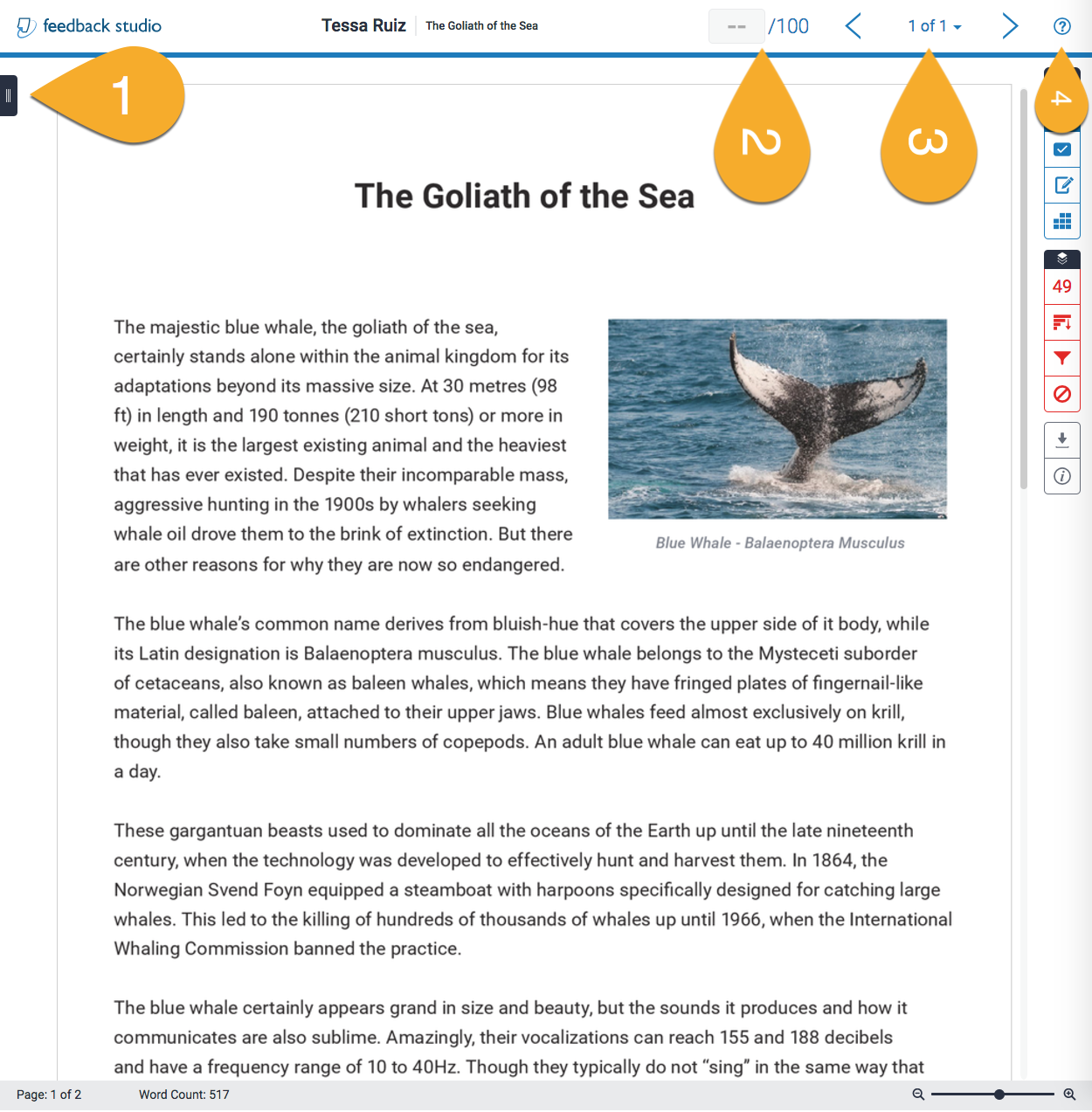
- Page navigation: Quickly navigate a document by expanding the small black tab to reveal multiple pages.
- Mark: This field allows the instructor to enter a numeric grade up to the maximum point value set within the Turnitin dropbox settings.
- Navigating multiple submissions: The arrow navigation buttons allow the instructor to move between student submissions without having to return to the main assignment inbox.
- Turnitin support materials: Turnitin's library of support resources can be accessed from the top right corner of the document viewer.
Image too small? Click here to enlarge.
Hover over the highlighted areas above to reveal their function.
